
UQC may earn compensation for qualifying purchases or referrals through our links. Disclosure.
Terraria is much better when the world doesn't disappear because the one mate hosting it has gone to bed. A dedicated server gives your group a shared place to build, explore and accidentally summon a boss nobody is ready for.
Pine is my pick for managed Terraria hosting. The useful part is the panel: it puts the server type, version, world settings and files in reach without making you manage the whole machine. Here is what the actual setup looks like, and the decisions worth making before everyone joins.
Open Pine's game list and choose Terraria
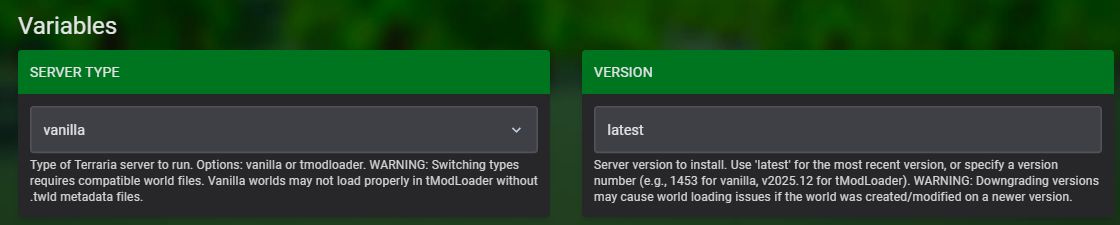
Choose vanilla or tModLoader first
If you want regular Terraria with friends, choose vanilla. If your group is planning a modded playthrough, choose tModLoader and agree on the mod list and compatible versions before creating the world. Installing different mods on everyone's computer is a very efficient way to spend the evening troubleshooting instead of playing.
In Pine's panel, open Startup and look for SERVER TYPE. The current selector offers vanilla and tmodloader, with a separate VERSION field. The screenshot below was captured from the panel on 14 November 2026.
Enlarge screenshot
Pine's server-type instructions (pinehosting.com) then call for a reinstall from Settings to apply the selection. Back up and download any existing world before reinstalling. Make this choice before you invest hours in a world. Switching server types is not a magic conversion button. Keep the original world files and the matching modded data together, and make a backup before changing type or version. The panel also warns that downgrading can stop a newer world loading correctly.
Set up the world for your group
- Choose a hosting location close to the people who will actually play. Compare the complete order total and billing period, including any upgrades, before ordering.
- Open your Terraria server in the Pine game panel, then go to Startup.
- Select your server type and version. For an existing world, match what it was running rather than experimenting with older versions.
- Set the world name, world size and difficulty for a new world. Pine's Startup page also includes maximum players and a server password.
- Give your friends the joining password, not the panel login. Keep administrative access for people you trust to manage the server.
- Start the server and test joining before sending the details to the whole group.
World size, difficulty and seed are creation choices. Changing those fields does not rebuild an existing world into a different size or difficulty. Decide together before starting a new playthrough, especially if one person wants Journey and the rest want a standard run.
Watch the setup alongside this guide
Our Terraria server companion video (youtube.com) shows the Pine checkout, panel and joining process. Follow the vanilla or tModLoader steps above for your setup; plans and offers in the recording may have changed.
Bringing an existing Terraria world
Don't throw away a perfectly good build just because you are moving hosts. First, preserve an untouched copy of your existing world. Stop the destination server before replacing any save files and keep a backup of anything already there.
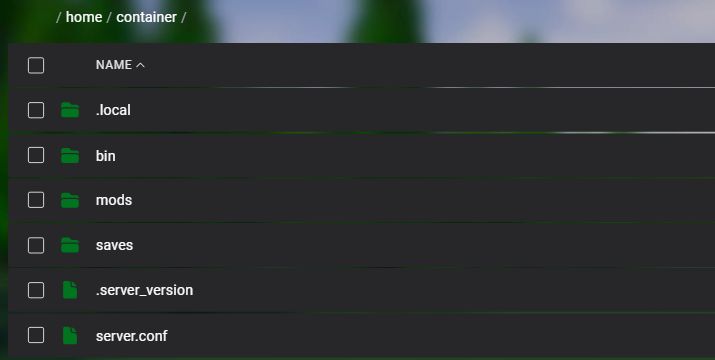
The Files tab gives you access to the server's folders. Our Terraria installation shows a saves folder, a mods folder and server.conf, as pictured below. The panel's file manager is where you inspect the installed layout and manage the files for your particular server type.
Enlarge screenshot
For a vanilla transfer, keep the world file and its backup together. For a modded transfer, keep the associated tModLoader world data as well. Have Pine support confirm the exact destination and world selection for your installed server type, then test the result before anyone starts playing. A familiar world name alone is not enough: check a recognisable build, your chests and the world's progress.
If it starts a fresh world instead, stop and check the selected world and upload location. Don't keep playing in the accidental new one while trying to fix the old one.
Joining and keeping the world safe
For a compatible PC Terraria server, open Multiplayer, choose Join via IP, select your character, and enter the connection address, port and password from your hosting panel. Use the values shown for your server rather than copying somebody else's example. With tModLoader, launch the matching tModLoader client and mod setup.
Make your first test with one friend. Confirm that you both join the intended world and that a normal save and restart keeps your progress. Then invite everyone else.
Pine also has a Backups section. Open it and confirm an actual backup exists; an empty list won't rescue your base. Keep a separate downloadable copy before updates, imports or switching mods. A restore rolls the world back to that backup, so warn your friends before undoing their latest building spree.
Questions before you buy
Do I need tModLoader for ordinary Terraria?
No. Use vanilla for an ordinary Terraria world. Choose tModLoader for a compatible modded playthrough, with the same required mods and versions across the server and players.
Can I change world size after creating the world?
Changing the Startup setting applies to new world creation, not the existing world. Back up your current world before creating a replacement.
Is this a console or mobile crossplay guide?
No. The panel walkthrough here covers the vanilla and tModLoader options we inspected. Confirm support for your exact platform before ordering; don't assume a PC server accepts every Terraria edition.
How much hosting do we need?
Start with your group size and whether you want vanilla or a modded setup. Compare the plan's resources, not only its advertised player slots. A heavily modded world may need more headroom than a small vanilla playthrough.
Ready to get everyone playing?
Sort out vanilla versus mods, pick a nearby location and keep a world backup. Those three decisions save far more hassle than tweaking every setting on day one.
Choose Terraria from Pine's game list
Playing something else too? See our Palworld hosting guide or Minecraft hosting comparison.
Disclosure
We may earn a commission if you buy through our links.